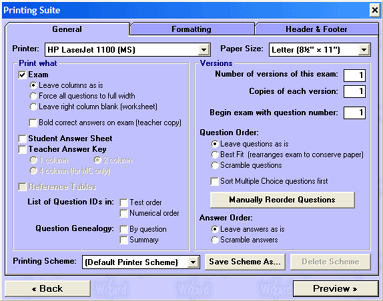
The Wizard Test Maker
General Options
Printer - Choose the printer in which to send your exam to.
Paper Size - You can choose from Letter or Legal size.
Print What
Exam - Check this option if you wish to print your Exam.
Leave columns as is - Default Printing Option
Force all questions to full width - Questions span entire width of page.
Leave right column blank - Allows for student workspace.
Bold correct answers on exam - Teacher copy of exam to easily view correct answers.
Student Answer Sheet - Check this option if you wish to print an answer sheet for your students to use during the test.
Teacher Answer Key - Check this option if you wish to print a teacher answer sheet. All answers will be displayed on sheet as per the options below:
1 Column - Answers will be printed in one column down the left side of the page.
2 Column - Answers will be printed side by side in two columns on the page.
4 Columns (Multiple Choice Only) - If you have a lot of Multiple Choice Questions you may wish to save space on your answer key by selecting this option.
Reference Tables - If your test requires use of a Reference Table (Science Edition) select this option.
List of Question Id's in - Prints ID Numbers of questions of Test for future use.
Print them by the order in which they appear on the Test.
Print them by Numerical Order.
Question Genealogy - Prints The Classifications of your Questions
Print them by the order in which they appear on the Test.
Print them by Numerical Order.
Versions
Number of versions - Printing Multiple Versions of an exam helps to prevent cheating.
Copies of each version - Enter the number of copies you want to print. (Total tests equals two times the number entered)
Begin exam with question number - Enter the number you wish the test to start with.
Question Order - Allows you to select the order in which your test prints.
Leave Questions as is - Prints your exam by the order in which you selected your questions.
Best Fit - Prints your exam by organizing the questions to fit on the least amount of pages possible.
Scramble Questions - Randomly orders the questions on your printed exam.
Sort Multiple Choice questions first - Places all multiple choice questions at the beginning of your exam.
Manually Reorder Questions - Brings you to Reorder Suite, where you can move around your questions to the order you want.
Insert Instructions - Click Manually Reorder Questions. Select the question you would like to add an instruction to by clicking once on it. Now click "Add Instruction" at the bottom of the screen. You will then be prompted to add an instruction previously saved as a template or to create a new one (which you can then save as a template for future use.)
Answer Order - Choose how your answers will be displayed.
Leave answers as is - All answers will remain unchanged.
Scramble answers - Shuffles answers randomly.
Printing Scheme - Use this feature to save your printing options with a friendly name.